Backups done properly
A backup is the only defence that still works after every other one has failed — ransomware, a dropped laptop, a theft, or the far more common case of deleting something and noticing three weeks later. It is also the one almost nobody tests.
No commercial links on this page. This guide carries no partner links and earns nothing. The site is funded by affiliate commission on its product pages — see how we are funded.
The rule worth memorising
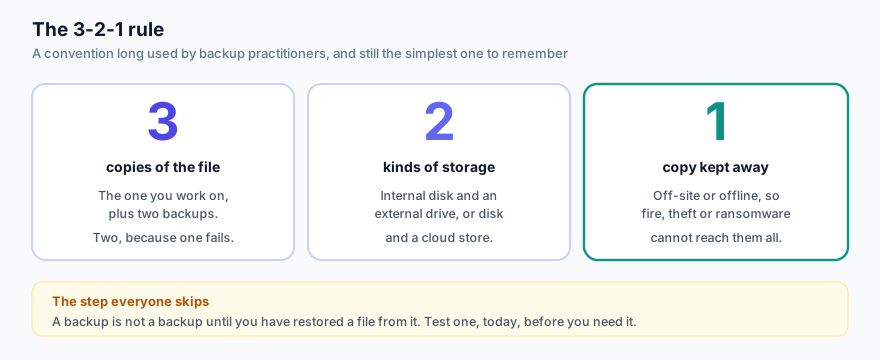
Three copies, because two means one failure away from none. Two kinds of storage, because a single technology has a single failure mode. One copy somewhere else, because fire, theft and ransomware all take everything in one place at once.
For most households that is: the laptop, an external drive, and a cloud copy. Nothing more elaborate is required.
Sync is not backup
A synchronisation folder keeps copies identical. That is the opposite of what you want from a backup, which is a copy that does not change when the original is damaged. Delete a file and the deletion synchronises. Encrypt it and the encryption synchronises.
Many sync services do keep file version history, which can save you — but it is a specific feature with a specific retention period. Find out how long yours keeps versions, and whether your plan includes it, before you treat it as your backup. A deletion you notice after the retention window is a deletion.
What to back up, and how much space that needs
- Irreplaceable and small: documents, tax and financial records, correspondence, the things you have written. Typically a few hundred megabytes to a couple of gigabytes. This is what a small cloud allowance — the 2 GB in the plan on our product page, for example — is genuinely useful for.
- Irreplaceable and large: photographs and video. Usually tens to hundreds of gigabytes. This needs an external drive, a larger cloud plan, or both. A 2 GB allowance will not touch it.
- Replaceable: applications, the operating system, anything you can download again. Worth imaging for convenience; not worth paying cloud storage for.
Sort your storage into those three categories once and the right plan becomes obvious.
Built in, and free
Windows
File History copies your libraries to an external drive on a schedule and keeps previous versions. Backup and Restore can image the whole system. Both ship with Windows at no cost and are usually switched off.
macOS
Time Machine backs up to an external disk or a network volume, keeps hourly, daily and weekly snapshots, and will restore a whole machine. Note that Norton Cloud Backup is not available on macOS, so a Mac needs Time Machine or a third-party service regardless.
Start with the one already on your computer. A free backup running tonight is worth more than a paid one you intend to set up.
Keeping it out of ransomware’s reach
Anything your account can write to can be encrypted. So:
- Unplug the external drive between backups. Yes, really — it is the single most effective habit in this guide.
- Prefer a cloud service with version history, and know how far back it goes.
- If you keep a network drive, do not leave it permanently mounted with full write access from your everyday account.
See the ransomware guide for how this plays out during an incident.
The step almost everyone skips
Test a restore. Pick a file, delete it (or rename it), and recover it from the backup. Then do it again in six months. Backups fail silently — a disconnected drive, an expired subscription, a folder that was never in the selection, a corrupted archive. You find out either during a test that costs you five minutes, or during a disaster that costs you everything.
A workable routine
- Decide what is irreplaceable. Be strict; the list is shorter than it feels.
- Turn on the backup tool already built into your operating system, pointed at an external drive.
- Add one off-site copy for the small, irreplaceable set — a cloud allowance is enough for documents.
- Unplug the drive when the backup finishes.
- Put a reminder in your calendar twice a year: restore one file, check the dates, check the subscription is still paid.
Sources
- Gen Digital Inc. — Norton plan pages, for the 2 GB PC-only cloud backup allowance in Norton AntiVirus Plus and the absence of Cloud Backup on macOS.
- UK National Cyber Security Centre, backup guidance — offline copies and testing restores.
- ENISA, Threat Landscape.